Tome's Land of IT

IT Notes from the Powertoe – Tome Tanasovski

Get a list of metro apps and launch them in Windows 8 using PowerShell

I’ve been playing with Windows 8 store apps (metro apps) in C# and Xaml recently, and of course I thought it would be cool to launch these apps from within Windows PowerShell.  After some fruitless research trying to find a native way to do this in PowerShell or C#, I learned about a C++ interface called IApplicationActivationManager.

Fortunately, I was able to find some code on Stack Overflow that showed how to use this in C# (the post also listed the registry information I will describe in this article).  After some tweaking the code and the Add-Type syntax, I was able to expose the function I needed into PowerShell.  After that it was only a matter of wrapping the function into something that resembles PowerShell.

The code can be found on poshcode.

Get-MetroApp

This is a simple function that returns all of the metro apps installed on your machine.  Any filtering must be done with Where-Object.  Here’s a sample of what the cmdlet looks like when run:

23:48:22 PS D:\dropbox\scripts> Get-MetroApp |ft -AutoSize

EntryPoint                                                 ID                                                                      
----------                                                 --                                                                      
default.html                                               26720RandomSaladGamesLLC.HeartsDeluxe_kx24dqmazqk8j!App                 
Magic.UltimateTuner.App                                    26739TheMagicSoftware.UltimateTuner_hf01bqnspr91a!App                   
ContosoCookbook.App                                        4d1ddc26-6768-4a0d-97db-7cd72fc805c9_d6s28v2r30d6p!App                  
DataBindingTest.App                                        51da487c-5876-4ec7-9cad-fb5762b5032c_d6s28v2r30d6p!App                  
Tuner.App                                                  76f04ed9-49c3-434c-8d45-e392388e7e4d_d6s28v2r30d6p!App                  
BoxeeRemote.App                                            8c2b4686-67a7-46c2-aa34-5ac085571fed_d6s28v2r30d6p!App                  
Microsoft.Expression.DesignHost.Isolation.IsolationProcess App.a875b8f2e.a8a0c.a437b.aa93f.a4b3cf406091a_8wekyb3d8bbwe!Designer.App
DefaultBrowser.DefaultBrowserActivatableClass              DefaultBrowser_NOPUBLISHERID!Chrome                                     
HSW.Client.App                                             DiscoveryCommunicationsIn.HowStuffWorks_qa3esp0sj9xn6!App               
default.html                                               Microsoft.BingWeather_8wekyb3d8bbwe!App                                 
default.html                                               Microsoft.SkypeApp_kzf8qxf38zg5c!App                                    
MetroTwit.App                                              PixelTuckerPtyLtd.MetroTwit_5kbmb3e034y6r!App

The code behind this function is all about the registry. However, this is not an easy story to tell. The registry keys are not consistent. Basically, xaml apps are shows differently than HTML5 apps. Also, I’m still not entirely sure what DirectX apps will look like, but I assume that the Chrome browser is a C++ app so hopefully we’re covered there. Here is the logic behind what Get-MetroApp looks for in the registry:

The starting point for everything is in HKCU:\Software\Classes\ActivatableClasses\Package.  Each key is a separate app.  Each of these keys contains a Sever key and a key called ActivatableClassID.

The server key contains two keys.  The one of these that is not named BackgroundTransferHost.1 is the one that will have a property called AppUserModelID.  The value of this is what is needed in order to launch a metro app.  This is the ID property returned from Get-MetroApp.

Unfortunately, it’s not always obvious which app is which from this key so the Get-MetroApp also looks in the ActivatableClassID key for another key that has a CustomAttributes key with a property named AppObject.EntryPoint.   I found that the best key to try first was one called App if it existed, followed by app.wwa.  If neither of those is found, I iterate through each key looking for the AppObject.EntryPoint property.

In the case of xaml apps, the value of Appobject.Entrypoint appears to show the name of the app.  In html5 apps, it appears to only show default.html.  That is, unless there are other keys or sources out there that we (the community) have yet to discover.  In all of the apps that I had installed, I was able to tell which app was which by reading one or the other property returned by Get-MetroApp.

Start-MetroApp

You can ether pass an ID returned by Get-MetroApp

Start-MetroApp PixelTuckerPtyLtd.MetroTwit_5kbmb3e034y6r!Ap

or you can pipe one of the results from get-metroapp into Start-MetroApp.

Get-MetroApp |? entrypoint -match metrotwit |Start-MetroApp

I used the following to test that it was able to start every app i had installed:

Get-MetroApp |%{Start-MetroApp;sleep5}

The End?

I know this will come in handy to many. I have already added the module in my profile and have bound a few functions to allow me to quickly switch to specific metro apps very quickly. However, I’m not sure this is over yet. I’m curious if we will find better ways to grab the name of the app and link it with the ID. Please feel free to use the comments section of this page if you learn anything beyond what I have done.


Edit: I just learned about Get-AppxPackage in the Appx module. It appears to have a cleaner name, but it does not have the launch id required to launch the app. I’m sure it will be easy to correlate the packages to this name using some of the other keys. This will have to wait for another day, but it’s at least a lead to a better Get-MetroApp cmdlet.

Powerbits #9 – Get the directory of the calling script or get the current working directory of a session

This is one of my most used snippits of code. I generally put this at the beginning of every script. Every time I need it, I always say I need to post this as a powerbit so that I can find it more easily. Well, my wait is finally over, and you get the pleasant side effect of learning my most used trick.

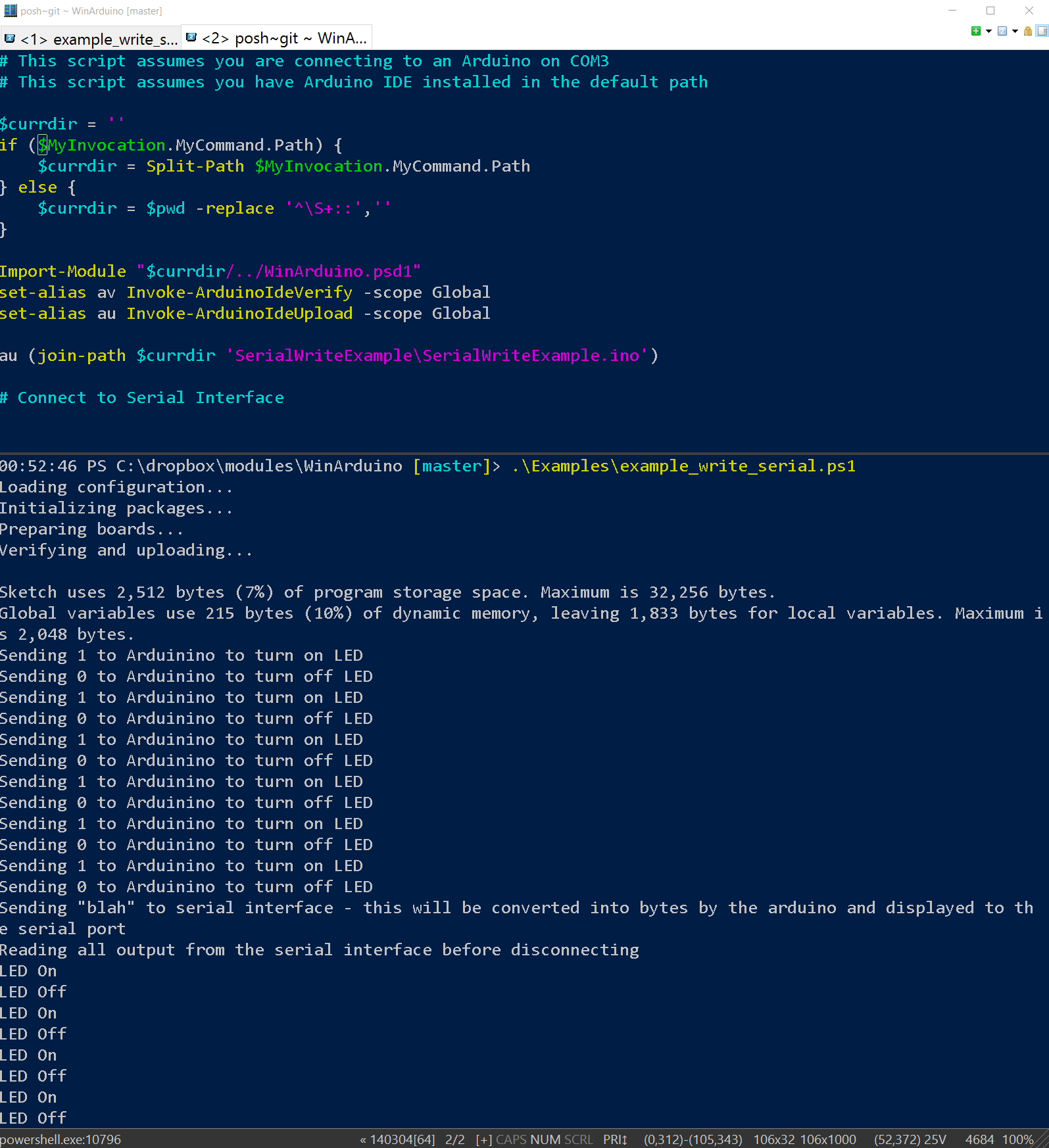
The following bit of code will populate $currdir. If the script is run via a .ps1 file, it will set $currdir to be the directory where the .ps1 file lives. This will allow you to right click on a file and say “run with powershelll”, and have it use the files in that directory. The problem with this is that it will notwork if you are developing in ISE or in a powershell.exe host window. In that scenario, you generally want $currdir set to the directory your shell is in. This snippit will do just that, i.e., if it is not run via .ps1 file, it will load from $pwd (with some regex to strip out the psprovider nonesense).

$currdir = ''
if ($MyInvocation.MyCommand.Path) {
    $currdir = Split-Path $MyInvocation.MyCommand.Path
} else {
    $currdir = $pwd -replace '^\S+::',''
}

Median and Mode in a Measure-Object Proxy Function or How to Add Properties to the Return Object in a Proxy Function

I was poking around Khan Academy for something to do.  Because I’ve been living and breathing data, I thought it only appropriate to run through the statistics lessons up there.  While, I’m no slouch at statistics, I figured it can’t hurt to listen to lesson 1: Mean, Median, and Mode.  I started to think about how to do perform these calculations in PowerShell.  Mean required no thought at all:

Mean

$data = (0,1,1,3,5)
($data |Measure-Object -Average).Average

Median and Mode required some thought.  I quickly mocked up the following which worked like a charm:

Median

$data = (0,1,1,3,5)
$data = $data |sort
if ($data.count%2) {
    #odd
    $medianvalue = $data[[math]::Floor($data.count/2)]
}
else {
    #even
    $MedianValue = ($data[$data.Count/2],$data[$data.count/2-1] |measure -Average).average
}    
$MedianValue

Mode

$data = (0,1,1,3,5)

$i=0
$modevalue = @()
foreach ($group in ($data |group |sort -Descending count)) {
    if ($group.count -ge $i) {
        $i = $group.count
        $modevalue += $group.Name
    }
    else {
        break
    }
}
$modevalue

This is all fine and dandy, but working on this made me think of a great talk that Kirk Munro did at TEC 2012 about proxy functions. This is a topic that I’ve been dying to play with, but I have not had the desire beyond curiosity. This, however, was a perfect occasion. I decided to extend Measure-Object to include a -Median and a -Mode parameter.

I’m not going to dig into how to do proxy functions. If you’d like a step-by-step guide, I’d suggest reading Shay Levy’s blog post on Hey Scripting Guy! It’s really the best there is on the subject. However, after you read that article, you will likely scratch your head as I did when thinking about how to perform your own calculation on the objects in the pipeline, and then modify the return object to include new properties.

Perform your own calculation on the objects in the pipeline within the proxy function

The first problem to solve was easy in my opinion. I wanted to collect all of the objects passed to the Process block, and then do my calculations on this acquired list in the End block. I initialize an array called $data in Begin. Within the Process block, you can simply add $_ to that $data list.  Actually, in the case of Measure-Object you need to also be mindful of whether someone used the Property parameter. If they do, you need to ensure that you are collecting the values of the property specified for the objects in the pipeline rather than the object itself.  Here is the relevant snippits with elipses (…) indicating the missing code. You will be able to see the full code at the end of this article:

begin
    {
        try {
            # Initialize my $data array
            $data = @()
...

   process
    {
        try {
            if ($Property) {
               $data += $_.($property)
            } else {
               $data += $_
            }
...

With the above code, you can now access $data in the End block. However, this is not enough. In order for my proxy function to feel like a single function it needs to return the data along with object that the function normally returns.

Modify the return object of the original function

At first glance it looks like you could call Add-Member on $steppablePipeline.End(). This will not work. The End() method does not actually return anything at all. I think it’s a bit counter-intuitive. Unfortunately, the only way I have found to solve this problem is to call the original function on the data, and then call Add-Member on the return value of the function. Shay points out a subtle hint in his article to this, by telling us that we must use the full namespace\cmdletname to the function in order to call the original function (the non-proxied version). The only thing you need to be careful about is that you properly call the function with the original parameters.  This can be done by using $pscmdlet.MyInvocation.BoundParameters, but you need to be sure to exclude the InputObject and the Property parameter.   The InputObject should be taken from the $data variable you have populated. The property parameter needs to be excluded because you have already flattened the data down to the value of the property in the Process block as described in the previous section.  The following code illustrates how all of this can be accomplished in your end block:

$params = @{}
foreach ($key in ($pscmdlet.MyInvocation.BoundParameters.Keys |?{($_ -ne 'inputobject') -and ($_ -ne 'Property')})) {
     $params.($key) = $pscmdlet.MyInvocation.BoundParameters.($key)
}
$return = $data |Microsoft.PowerShell.Utility\Measure-Object @params
$return |add-member noteproperty -Name SomeName -Value SomeValue
$return

Here is the final version of my code that extends Measure-Object to include -Median and -Mode. The only decision I made that makes it feel not a part of the original function is that I do not add the Median and Mode properties to the return object unless the respective parameters are specified.  I have consciously done this in order to avoid any negative performance impact if I do not use the Median or Mode switch parameters.  It’s also debatable whether the Measure-Object cmdlet should return one of its normal properties if the parameter switch for that property was not used, but that’s not something I’m here to debate.

function Measure-Object {
    [CmdletBinding(DefaultParameterSetName='GenericMeasure', HelpUri='http://go.microsoft.com/fwlink/?LinkID=113349', RemotingCapability='None')]
    param(
        [Parameter(ParameterSetName='GenericMeasure')]
        [switch]
        ${Average},

        [Parameter(ValueFromPipeline=$true)]
        [psobject]
        ${InputObject},

        [Parameter(Position=0)]
        [ValidateNotNullOrEmpty()]
        [string[]]
        ${Property},

        [Parameter(ParameterSetName='GenericMeasure')]
        [switch]
        ${Sum},

        [Parameter(ParameterSetName='GenericMeasure')]
        [switch]
        ${Maximum},

        [Parameter(ParameterSetName='GenericMeasure')]
        [switch]
        ${Minimum},

        # Add my two parameters
        [Parameter(ParameterSetName='GenericMeasure')]
        [switch]
        $Mode,

        [Parameter(ParameterSetName='GenericMeasure')]
        [switch]
        $Median,
        # Parameters added

        [Parameter(ParameterSetName='TextMeasure')]
        [switch]
        ${Line},

        [Parameter(ParameterSetName='TextMeasure')]
        [switch]
        ${Word},

        [Parameter(ParameterSetName='TextMeasure')]
        [switch]
        ${Character},

        [Parameter(ParameterSetName='TextMeasure')]
        [switch]
        ${IgnoreWhiteSpace})

    begin
    {
        try {
            # Initialize my $data array
            $data = @()
            # $data array initialized

            $outBuffer = $null
            if ($PSBoundParameters.TryGetValue('OutBuffer', [ref]$outBuffer))
            {
                $PSBoundParameters['OutBuffer'] = 1
            }
            $wrappedCmd = $ExecutionContext.InvokeCommand.GetCommand('Measure-Object', [System.Management.Automation.CommandTypes]::Cmdlet)

            # Remove my parameters if they are used so that errors are not thrown when passed to the Measure-Object function
            if ($PSBoundParameters['Mode']) {
                $PSBoundParameters.Remove('Mode') |Out-Null            
            }

            if ($PSBoundparameters['Median']) {
                $PSBoundParameters.Remove('Median') |Out-Null            
            }
            #Parameters removed

            $scriptCmd = {& $wrappedCmd @PSBoundParameters }
            $steppablePipeline = $scriptCmd.GetSteppablePipeline($myInvocation.CommandOrigin)
            $steppablePipeline.Begin($PSCmdlet)
        } catch {
            throw
        }
    }

    process
    {
        try {
            # If one of my parameters is used, populate $data with the objects        
            if ($Median -or $Mode) {
                if ($Property) {
                    # The next line ensures that I'm populating the array with the values I should be measuring
                    # if the -Property parameter is used
                    $data += $_.($property)
                } else {
                    $data += $_
                }
            }
            # $data populated
            else {
                $steppablePipeline.Process($_)
            }
        } catch {
            throw
        }
    }

    end
    {
        try {
            # If my parameters are used, calculate and add the property to the return
            if ($Median -or $Mode) {
                # Grab all of the parameters except for InputObject
                $params = @{}
                foreach ($key in ($pscmdlet.MyInvocation.BoundParameters.Keys |?{($_ -ne 'inputobject') -and ($_ -ne 'Property')})) {
                    $params.($key) = $pscmdlet.MyInvocation.BoundParameters.($key)
                }
                # Call the original Measure-Object on the data so that I can add-Member my
                # properties to this later
                $return = $data |Microsoft.PowerShell.Utility\Measure-Object @params
                if ($Median) {
                    $data = $data |sort
                    if ($data.count%2) {
                        #odd
                        $medianvalue = $data[[math]::Floor($data.count/2)]
                    }
                    else {
                        #even
                        $MedianValue = ($data[$data.Count/2],$data[$data.count/2-1] |measure -Average).average
                    }    
                    $return |Add-Member Noteproperty -Name Median -Value $MedianValue
                }
                if ($Mode) {
                    $i=0
                    $modevalue = @()
                    foreach ($group in ($data |group |sort -Descending count)) {
                        if ($group.count -ge $i) {
                            $i = $group.count
                            $modevalue += $group.Name
                        }
                        else {
                            break
                        }
                    }
                    if ($modevalue.Count -gt 1) {
                        $return |Add-Member Noteproperty -Name Mode -Value $modevalue
                    } else {
                        $return |Add-Member Noteproperty -Name Mode -Value $modevalue[0]
                    }
                }
                $return
            }
            else {
                $steppablePipeline.End()
            }
        } catch {
            throw
        }
    }
    <#     .ForwardHelpTargetName Measure-Object     .ForwardHelpCategory Cmdlet     #>

}

Next Steps

The only thing remaining is to consider whether or not I should even used $wrappedcmd at all. Part of me thinks it might be best to drop it completely and create a function that just processes InputObject so that I can build it into a collection to be used later. Part of me says this is not worth thinking about right now. The latter has won. Good night.

How to Execute PowerShell Scripts Without the CPU Hit to Start PowerShell

Background – The Problem

I have been playing a lot with Splunk recently. If you’re not familiar with the product, it is a horizontally scalable database that leverages map-reduce to give you real-time analytics about your data. That’s probably a topic for another day, but the relevant part is that they have an agent that can run on a Windows desktop called the Universal Forwarder. They also have a PowerShell SDK that lets you send data to Splunk via PowerShell. Again, the details about these topics should be saved for another day. The topic for today is that in order to send data from my system with any regularity I encounter a fairly known problem with PowerShell performance: Starting powershell.exe takes longer-than-I’d-like time and it incurs a bit of a CPU hit. Both of which are unacceptable to me if I’m going to run these scripts on every desktop in my enterprise.  This is especially true when you consider that a good proportion of those will be virtual desktops that are sharing CPU with each other.

The Solution

I’ve been thinking about this problem a lot, and I have a trimmed-down script-only version of my proposed solution. The technique is not that hard to follow.  The first step is to create a PowerShell script that will run indefinitely.  The script has the following requirements:

  • It should read through a directory for scripts.  If a script exists, it should execute it in its current runspace.
  • The order in which the scripts are entered in the queue directory matters, i.e., the first script in should be the first script run.
  • After every script is run, it should remove the variables that were created by the script, and then call [gc]::collect() to ensure that memory does not become unmanageable.  This is the magic part of the script.  For many, this post may be worth this snippit alone :)  You can use this technique anytime your PowerShell session is using up too much RAM for your tastes.
  • It should allow an initialization script to run so that you can load any global variables that should not be deleted or modules that should stay loaded in the session.
  • It should sleep for a variable number of seconds between runs
  • Parameters should consist of, the queue directory name, the initialization script, and the delay between retries in the loop.

The Script

The end result is a script called longrunnings.ps1 (for lack of any thought put into the name) that looks like this:

param(
    [Parameter(Mandatory=$true,Position=0)]
    [ValidateScript({Test-Path $_ -PathType Container})]
    [string] $QueueDirectory,
    [Parameter(Mandatory=$false)]
    [ValidateScript({Test-Path $_ -PathType Leaf})]
    [string] $InitializationScript,
    [Parameter(Mandatory=$false)]
    [int] $SleepSeconds = 15
)
if ($InitializationScript) {
    Write-Verbose "Dot sourcing $InitializationScript"
    . $InitializationScript
}

Write-Verbose "Capturing the list of variables in the session so they are not removed between executions"
$vars = dir variable: |select -ExpandProperty name
# There's a few variables that get set in this script, and a few others that will be seen when called as a script
$vars += ('args','input','MyInvocation','PSBoundParameters','PSDebugContext','file','vars','files','foreach')

# Enter the infinite loop
while ($true) {
    $files = dir $QueueDirectory -file -Filter *.ps1 |sort lastwritetime
    if ($files) {
        foreach ($file in $files) {
            Write-Verbose ('Reading {0}' -f $file.fullname)
            $content =  [System.IO.File]::OpenText($file.fullname).ReadToEnd()
            Write-Verbose ('Executing {0}' -f $file.fullname)
            Invoke-Expression $content
        }
        $newvars = dir variable: |select -ExpandProperty name
        foreach ($var in $newvars) {
            if ($vars -notcontains $var) {
                Write-Verbose ('Removing ${0}' -f $var)
                Remove-Variable $var
            }
        }
        Write-Verbose 'Garbage Collection'
        [gc]::Collect()

        Write-Verbose ('Deleting {0}' -f $file.fullname)
        del $file.fullname
    }
    else {
        sleep $SleepSeconds
    }
}

The SCHTASKS job

Here’s an export of the schtasks xml I am using to ensure that it runs constantly.  I even have it set to restart every 24 hours, but that may not be necessary.

<?xml version="1.0" encoding="UTF-16"?>
<Task version="1.2" xmlns="http://schemas.microsoft.com/windows/2004/02/mit/task">
 <RegistrationInfo>
 <Date>2012-06-25T16:30:49.0052527</Date>
 <Author>TOENUFF\Administrator</Author>
 </RegistrationInfo>
 <Triggers>
 <CalendarTrigger>
 <Repetition>
 <Interval>PT5M</Interval>
 <StopAtDurationEnd>false</StopAtDurationEnd>
 </Repetition>
 <StartBoundary>2012-06-25T16:26:37.0340001</StartBoundary>
 <ExecutionTimeLimit>P1D</ExecutionTimeLimit>
 <Enabled>true</Enabled>
 <ScheduleByDay>
 <DaysInterval>1</DaysInterval>
 </ScheduleByDay>
 </CalendarTrigger>
 </Triggers>
 <Principals>
 <Principal id="Author">
 <UserId>TOENUFF\Administrator</UserId>
 <LogonType>S4U</LogonType>
 <RunLevel>HighestAvailable</RunLevel>
 </Principal>
 </Principals>
 <Settings>
 <MultipleInstancesPolicy>IgnoreNew</MultipleInstancesPolicy>
 <DisallowStartIfOnBatteries>false</DisallowStartIfOnBatteries>
 <StopIfGoingOnBatteries>true</StopIfGoingOnBatteries>
 <AllowHardTerminate>true</AllowHardTerminate>
 <StartWhenAvailable>false</StartWhenAvailable>
 <RunOnlyIfNetworkAvailable>false</RunOnlyIfNetworkAvailable>
 <IdleSettings>
 <StopOnIdleEnd>true</StopOnIdleEnd>
 <RestartOnIdle>false</RestartOnIdle>
 </IdleSettings>
 <AllowStartOnDemand>true</AllowStartOnDemand>
 <Enabled>true</Enabled>
 <Hidden>false</Hidden>
 <RunOnlyIfIdle>false</RunOnlyIfIdle>
 <WakeToRun>false</WakeToRun>
 <ExecutionTimeLimit>PT0S</ExecutionTimeLimit>
 <Priority>7</Priority>
 <RestartOnFailure>
 <Interval>PT15M</Interval>
 <Count>4</Count>
 </RestartOnFailure>
 </Settings>
 <Actions Context="Author">
 <Exec>
 <Command>powershell.exe</Command>
 <Arguments>-windowstyle hidden -file D:\DropBox\scripts\longrunning\longrunning.ps1 -queuedirectory d:\dropbox\scripts\longrunning\queue -InitializationScript d:\DropBox\scripts\longrunning\init.ps1</Arguments>
 </Exec>
 </Actions>
</Task>

You can load the above by running

schtasks /create /xml d:\pathtoabovexml.xml

Controlling What Gets Run

Finally, to control when things are run, we obviously cannot rely on PowerShell because we’ll be introducing the overhead we are trying to avoid. Instead you can use schtasks again to copy your scripts into the queue directory at the intervals you expect them to run. Mind you, this does not ensure that the script runs at the specified time. It only ensures that it is scheduled to run. Alternatively, you could copy files directly into the directory from some remote server that controls what is run, but for my purposes the schtasks solution is fine.

Discussion

I mentioned at the beginning of this post that this is a script-only interpretation of my solution. I originally wanted to create this as a C# compiled service that created a PowerShell runspace and managed it nearly exactly the way I’m doing it in the script. The truth is that so far the technique I’m using seems to be extremely reliable. I’m sure I’ll hit snags along the way, but for now the technique is sound and the problem is solved. Whether I’ll propose this as a production solution is TBD, but I’m happy to see my dream realized.

Receiving a Disconnected PowerShell Session Asjob

I was down in Washington DC delivering a presentation about Windows Server 2012 for a roadshow that Microsoft put on. This was one stop in a few that I was lucky enough to be a part of (actually it’s not over yet – Boston is coming up on Wednesday). During that presentation I was showing off how you can disconnect a PowerShell session and then receive that session from another computer. This is a great new feature in PowerShell remoting that is integral to the new movement in Server to use PowerShell or tools that leverage PowerShell like the new server manager as the management tool of choice.

The demo goes like this:

Setup

3 computers

Server1 – The computer I am starting on. Windows Server 2012 RC1 (with PowerShell v3)
Server2 – The computer I am connecting to. Windows Server 2012 RC1 (with PowerShell v3)
Server3 – The computer I will use to connect to Server2 after Server1 is disconnected. Winows Server 2012 RC1 (with PowerShell v3)

The following script gets run on Server1 to start it off:

# Create a remote session
$s = New-PSSession -ComputerName server2
$s
# Start a long running command as a job on the session
$job = Invoke-Command $s {1..10000 | % {sleep 1; "Output $_"}} -AsJob
$job

After the job runs for a few seconds, you run the following on Server1 to disconnect the session:

Disconnect-PSSession $s

You can then close PowerShell on Server1 and open it on Server3. The following command will show you what sessions are available on Server2:

Get-PSSession -Computername Server2

The demo is finalized by performing the following to get into the session that was disconnected on Server1:

Get-PSSession -Computername Server2 |Receive-Session

This is a great demo that shows one of the best new features in the new version of the management framework. The only downside with the above is that the command started as a job, but when you call receive-pssession you are placed in the middle of the session as if you typed enter-pssesion. The problem with this is that ctrl-c will now break your running process. The natural question that was posed during the demonstration was, “How do you run receive-pssession, but keep it as a job?” My first inclination was to see if receive-pssession had an -asjob parameter. The answer is no. The solution is rather simple, but it did throw me for a loop. So much so that I thought I would share.

Solution

If you want to call receive-pssession asjob, simply run start-job with receive-pssession:

$job = Start-Job -ScriptBlock {Get-PSSession -ComputerName Server2|Receive-PSSession}

I told you it was simple, and I’m sure plenty of you who are reading this had figured this out without having to read the article. However, I thought it was worth discussing. If nothing else, this article at least highlights one of the great new features in PowerShell v3 Remoting.

Updated Solution – 6/26/2012

Thanks to Steve and Andreas in the comments (they require approval so I read them at the same time before they were visible on the page), there is a parameter in Receive-PSSession called OutTarget.  You can specify the following to force a Receive-PSSession to return a job:

$job = Get-PSSession -Computername Server2 |Receive-PSSession -OutTarget Job

I don’t like this.  I don’t like this so much that I have filed a connect suggestion to make Receive-PSSession use the more familiar -ASJob parameter.  Feel free to vote it up, if you agree.  Now, with that distraction, I hope no one noticed that I absolutely did not read the full Get-Help before making this post.  <ahem> wait…. I’ll come up with an excuse eventually.  All kidding aside, thanks for reading!  And thank you for helping make the site accurate!

How many combinations of unique pairs can you create out of two data sets

I’m going to take a moment to stray from the world of PowerShell to bring us down to some mathematics.  I had a lot of trouble finding an exact solution to my problem, so I thought I would share it..

Problem

I have two arrays:

$i=@('a','b','c')
$j=@('1','2','3')

How many unique pairs can I create from these two data sets. Furthermore, what if the count of items in set $i was greater than the count of items in set $j.

$i=@('a','b','c','d')

I’m not looking to create the algorithm to generate these pairs. I’m just looking to understand how many possible combinations there are in order to understand whether or not I need to explore a matching optimization technique like the genetic algorithm or whether or not I can apply brute force to the problem by trying all combinations of pairs.

I should note that these are obviously hypothetical data sets for the purpose of bringing the problem down to its root. The real data sets are objects that when compared with each other produce an integer value that provides a relative score of how compatible the pair is. You can think of this as a match.com-like problem.  The real-world problem also has larger data sets of 25 and 20 objects.

Solution to the first part of the problem

The first problem seems fairly straightforward. The resulting pairs look like this:

a  b  c

a1 b2 c3
a1 b3 c2
a2 b3 c1
a2 b1 c3
a3 b1 c2
a3 b2 c2

There are six possible solutions. As you can see, I leave the $i array in a static order and then try every permutation of $j to generate the unique pairs. If I rearrange $i, it won’t matter because it will not create unique pairs. Therefore the answer to problem #1 is J!. If your rusty on your math symbols, that’s the factorial of j that will account for every possible permutation. For example, $j.count equals 3. Therefore, the total number of possible solutions is 3x2x1 or 6.

Solution to the second part of the problem

This is the tricky one. The answer involves getting all of the possible ways of creating $j.count letters out of $i. For example, the grid from solution #1 is valid:

a  b  c

a1 b2 c3
a1 b3 c2
a2 b3 c1
a2 b1 c3
a3 b1 c2
a3 b2 c2

However, we also know that we can do all of the above permutations of $j with:

a b c
a b d
a c d
b c d

That means I have the 6 possible combinations of $j to try with the four combinations of $i. I can see the 24 possible combinations, but how do I figure that mathematically.

So the question is how can I figure out that $i would have only 4 possible ways of cutting it if I was looking for sets of 3 (the total number of $j.count). In other words, how many sets of a specific size I can create out of any set. This of course has been figured out. I mean, people have been playing with the possible card combinations forever. This is a typical dealing problem. How many combinations of 5 cards can be delivered out of a deck of 52 cards. The solution is the binomial coefficient.

To summarize:

n!/k!(n-k)!

where n is the total number of items in the set and k is the count for the groupings. This means that in my problem where I had 4 letters in $j, and I want to see how many ways I can match them up with my 3 different numbers, I can get the answer with the following:

4!/3! = 4x3x2x1/3x2x1x1 = 24/6 = 4

Now if I multiply this number by the total permutations of $j, I get the total number of combinations:

4x3! = 24

The final formula to determine all of the possible unique pairs can be reduced down as follows. It assumes that n > k.

(n!/k!(n-k)!) * k!
n!k!/k!(n-k)!
n!/(n-k)!

In the case where n -eq k, then the answer is just n!

Summary

Fortunately, this helped me come up with an equation to understand how many possible combinations I would need to test in my script. I happened to have 30 in one set and 29 in the other. That would mean 30! or 265,252,859,812,191,058,636,308,480,000,000 or 265 nonillion possible combinations. That’s definitely way too many to try all of them. Case closed.  The genetic algorithm will help me greatly find the best possible combinations without having to try them all. We’ll save that discussion for another day.

ForEach-Parallel

I just came back from the PowerShell Deep Dive at TEC 2012.  A great experience, by the way.  I highly recommend it to everyone.  Extremely smart and passionate people who could talk about PowerShell for days along with direct access to the PowerShell product team!

During this summit, workflows were a topic of conversation.  If you have looked at workflows, there is one feature that generally catches the eye – I know it caught mine the first time I saw it – ForEach-Parallel.  Unfortunately, when you dig into what it’s doing you come to learn that it is not a solution for multithreading in PowerShell.  Nope, it’s extremely slowwwwwwwwwwwwwww.  If you’re like me, parallel processing is key to getting some enterprise-class scripts to run faster.  You may have played with jobs before, but even they have some overhead that causes them to slow down.  Running scripts side by side works, but requires you to engineer the scripts in a way that they can be called like that.  So what is the best way to run something like a loop of data across four threads?  The answer is runspaces and runspace pooling.

function ForEach-Parallel {
    param(
        [Parameter(Mandatory=$true,position=0)]
        [System.Management.Automation.ScriptBlock] $ScriptBlock,
        [Parameter(Mandatory=$true,ValueFromPipeline=$true)]
        [PSObject]$InputObject,
        [Parameter(Mandatory=$false)]
        [int]$MaxThreads=5
    )
    BEGIN {
        $iss = [system.management.automation.runspaces.initialsessionstate]::CreateDefault()
        $pool = [Runspacefactory]::CreateRunspacePool(1, $maxthreads, $iss, $host)
        $pool.open()
        $threads = @()
        $ScriptBlock = $ExecutionContext.InvokeCommand.NewScriptBlock("param(`$_)`r`n" + $Scriptblock.ToString())
    }
    PROCESS {
        $powershell = [powershell]::Create().addscript($scriptblock).addargument($InputObject)
        $powershell.runspacepool=$pool
        $threads+= @{
            instance = $powershell
            handle = $powershell.begininvoke()
        }
    }
    END {
        $notdone = $true
        while ($notdone) {
            $notdone = $false
            for ($i=0; $i -lt $threads.count; $i++) {
                $thread = $threads[$i]
                if ($thread) {
                    if ($thread.handle.iscompleted) {
                        $thread.instance.endinvoke($thread.handle)
                        $thread.instance.dispose()
                        $threads[$i] = $null
                    }
                    else {
                        $notdone = $true
                    }
                }
            }
        }
    }
}

With that function, you can do things like this:

(0..50) |ForEach-Parallel -MaxThreads 4{
    $_
    sleep 3
}

You’ll notice that the above causes batches of four to run simultaneously.  Actually, it looks like the data is running serially, but it’s really in parallel.  A better example is something like this that simulates that some processes take longer than others:

(0..50) |ForEach-Parallel -MaxThreads 4{
    $_
    sleep (Get-Random -Minimum 0 -Maximum 5)
}

Mind you, parallel processing doesn’t always make things faster.  For example, if your CPU consumption per thread is more than your box can handle, you may be adding latency due to scheduling of the CPU.  Another example is that if it’s not a long running process that you are performing in your loop, the overhead for starting up multiple threads could make your script slower.  Just use your head and play with it.  In the right place at the right time, this is an absolute lifesaver.

Note: I learned this technique from Dr. Tobias Weltner, but for some reason I can’t find the link to the video where he discussed it.

PowerShell Studio 2012 – vNext for Primal Forms

I have just returned from the amazing lineup of PowerShell sessions at the NYC Techstravaganza.  Sapien happened to sponsor the PowerShell track.  This gave us the opportunity to hear what the company has been up to directly from their CEO, Dr. Ferdinand Rios.  I should note, not only did we get updates about their 2012 products, but we were handed USB keychains that were fully loaded with beta software!

The session brought us through the updates that Sapien has made to iPowerShell, their iOS app and PrimalScript.  Both had a whole set of new features, but it was the news about Primal Forms that I thought was worth blogging about.  Here are some of the new features we saw (this is probably not a comprehensive list – it’s just the items that raised my eyebrow during the session):

Primal Forms is now called PowerShell Studio 2012

This makes a lot of sense to me.  It is a name that more appropriately tells what Primal Forms is.  It’s not only a full-fledged winform developing environment for PowerShell, but it’s also a fairly robust integrated scripting environment (ISE).  The only downside is that there is already a codeplex project with this name.  It’s sure to spin up some conflict or debate.

Layout Themes

One thing is clear when working with Primal Forms 2011, you definitely don’t want/use all of the panes that you have open all the time.  When working on forms, you need a whole different layout than you need when you want to just work on a simple script.  Layouts can now be switched rapidly via a control in the bottom left.  These layouts continue to happen automatically, but you can also control them manually.

Font Size Slider

This is a slider that will change the size of the fonts in your script window.  I use this slider all the time in powershell_ise.exe when giving demos.  I’m glad this simple change is now in the app.

Function Explorer

This one is cool.  There is a pane that will allow you to quickly click between events and functions in your projects.  It’s dynamically built.  Obviously, it’s really neat when trudging through the complex structure of a scripted winform, but I am finding that it’s really cool for large modules too.

Change-in-code Indicator

There is an indicator between your code and the line numbers that are triggered during a change to your code.  If you open a script, and then make a change to that script, a yellow indicator shows that this has been changed:

Once you save the file, the indicator turns green:

If you open the script again, the indicator resets to not being there.

Toggle a Cmdlet to and from an alias

Apparently, you could always toggle an entire script to remove all aliases.  I was not aware of this.  Regardless, you can now right click on a cmdlet or alias to toggle between the cmdlet and its aliases.

Cmdlets have a ‘Convert to Alias’ context menu:

Aliases have an ‘Expand to Cmdlet’ context menu.

I should note that as of the beta you can convert to the alias foreach or % in place of Foreach-Object, but you cannot expand it back to a cmdlet.

Tab Completion of .NET Methods

Neat-o feature.  When you enter a method, you get a helper window to tell you the overloaded options.  You can press up and down (or click up and down in the intellisense helper) to select the appropriate parameter set that you plan to use:

Once you have found the right method, you can press tab (like the helper says) to autofill the method’s parameters.  This is really nice with classes that use an enumerator.  It saves you from having to type out the entire class name.  For example, the next image shows that it has typed the entire [System.MidpointRounding] for me.

It goes a bit further too.  As you can see above, a variable name is created and highlighted.  You can immediately start typing another variable or decimal.  Once you are done entering that parameter, you hit tab to go to the next one.  In the case of an enumerator, like the one above, it lets you select the item in the enumerator you would like to use.  This is handled via another intellisense helper that you can quickly move to with the up and down arrows.  It even gives you information about what the item does:

Control Sets

This is the one that matters!  This is the promise of scripted GUIs in my opinion.

You can package sets of common form controls, events, and functions as a control set.  This gives you an easy way to add something to your form that is a complete thing (for lack of a better word) via drag and drop.  For example,

  • You can add text boxes that have validation pre-configured so that it will validate whether or not you have an e-mail address or phone number.
  • You can add charts that automatically pull data from a specific cmdlet.
  • You can add buttons that run background processes or jobs that include status bars and indicators that help the end-user understand what is happening.
  • You can also include a quick textbox that will automatically have a button with an associated file-dialogue box that will populate the textbox.

Here is a list of the control sets that are in the beta:

I should note that the “TextBox – Validate IP” is one that I created this morning during breakfast.  I was floored by how easy it was to do (with some knowledge of winforms).  Actually, not only easy, but they give you the ability to utilize shared controls between the control sets.  In other words, if you already have an appropriate ErrorProvider object that can serve the validation for your TextBoxes, it will use that object rather than creating a new one if you tell the wizard that it can do so.  I will be blogging a detailed tutorial on how to do this today or tomorrow.

Debugging a Script that uses Remoting

Okay, this is the final feature.  The demo we saw did not show this.  Also, the beta version we received does not yet have it.  However, the promise was made in Ferdinand’s last slide.  When PowerShell Studio 2012 ships sometime in the Spring, it will have a remote debugger.

Open a file in PowerShell ISE via cmdlet – Version 3 Update

A while back I posted an article that discusses a cmdlet I created that opens up text files in powershell ISE.  It’s fairly robust: It accepts pipeline, wildcards, handles multiple files, etc.  I was just transferring my profile over to my Windows 8 Server computer, and I decided to revisit the script for PowerShell ISE in version 3.0 of PowerShell.

If you are not aware, powershell_ise.exe now accepts a new parameter called -File :

powershell_ise.exe -help

The way that -File works is better than I expected.  It not only opens up a PowerShell ISE window, and then opens the file in it, but it will inject the file into a PowerShell ISE window if it is already open.  Here is the relevant bit of code to launch powershell_ise.exe from a powershell.exe host.

# $files is an array that contains the full path to every file that will be opened
start powershell_ise.exe -ArgumentList ('-file',($files -join ','))

You can download the full script on PoshCode.

Powerbits #8 – Opening a Hyper-V Console From PowerShell

I am right now Windows Server 8 and PowerShell 3 Beta obsessed.  I want to blog – I want to blog – I want to blog, but I’m trying to hold back a lot of it until we see how everything shakes out.  I’m running Serer 8 beta on my new Asus ultrabook.  Because of this, I’m also running a ton of Hyper-V VMs on my fancy type-1 hypervisor in order to play with the new features in PowerShell 3 such as PowerShell Web Access and disconnected PSSessions.  I love the autoload of the Hyper-V module when I do something like Get-VM, but I was really disappointed that there was no cmdlet to open up a console session for one of my VMs.  I mean, I have no interest in loading up a GUI for Hyper-V to do this.  A bit of quick research led me to vmconnect.exe.

So, without further ado, here’s a quick wrapper that will let you open up Hyper-V console sessions directly from PowerShell.  This is now permanently in my profile:

function Connect-VM {
	param(
		[Parameter(Mandatory=$true,Position=0,ValueFromPipeline=$true)]
		[String[]]$ComputerName
	)
	PROCESS {
		foreach ($name in $computername) {
			vmconnect localhost $name
		}
	}
}

Now, you can either do something like

Connect-VM server2

or

'server2','server3'|connect-vm

Finally, if you are running PowerShell 3.0, you can do the following:

(get-vm).name |Connect-VM
Follow

Get every new post delivered to your Inbox.

%d bloggers like this: